Is Pro Worth It Just to Remove the Footer Line on PDFs?
If you make invoices with a free online tool, you may have seen a footer line added to the PDF. It might name the invoice maker, include a small link, or otherwise mark the document as created with a free plan. That can feel like an awkward detail on an invoice you’re sending to a client—and it can lead to a practical question: is paying for Pro worth it just to remove that line?
The short answer: sometimes. If you send polished invoices regularly, the footer bothers your clients, or you want a consistently branded document, paying to remove it may be a reasonable business expense. If you send only a few invoices, the footer is unobtrusive, or you can use a suitable free option, it may not be worth subscribing.
Here’s how to make the decision without getting distracted by plan names or vague pricing pages. We’ll look at the actual PDF, the invoice fields that matter more than its footer, the total subscription cost, and a few things to check before entering your details.
First, check what the footer actually says
Open a sample invoice PDF and inspect the footer at normal viewing and print sizes. Is it a clearly visible advertisement, a small credit line, or a link that does not affect the payment instructions? The answer matters. A prominent promotion may look out of place on a client-facing document; a subtle credit may be perfectly acceptable.
Also check whether the footer appears on every exported invoice, whether it is still there when you print the PDF, and whether upgrading removes only the footer or changes anything else you care about. A plan comparison should tell you what you are paying for. If it does not, check the tool’s help pages or contact its support before buying.
The phrase Pro removes footer is useful when comparing plans, but do not assume it means every element of the document becomes customizable. Confirm the exact export you get. A footer-free PDF is valuable only if the invoice itself has the information your client needs and looks right when opened.
When paying just for footer removal makes sense
For a freelancer, contractor, or small agency, an invoice is part of the customer experience. If you send the same kind of document week after week, presentation becomes part of your routine—not just a one-time design choice. Paying to remove a third-party line can make sense in these situations:
- You invoice frequently. A recurring expense is easier to justify when it applies to many client documents, not one occasional invoice.
- Your clients expect a branded document. If your business identity is central to your work, a software credit may feel inconsistent with the rest of your materials.
- The line is prominent. A visible advertisement can distract from the total due, payment details, or your own branding.
- You already use other Pro features. If the paid plan also includes features you genuinely need, footer removal may be a useful extra rather than the only reason to subscribe.
- The subscription fits your budget and workflow. A low monthly equivalent is still a recurring cost, so compare it with how often you actually create and export invoices.
It is less compelling if you send invoices only a few times a year, the credit is small and unobtrusive, or the tool makes you pay annually for a feature you need only once. In that case, look for a free option that produces an acceptable PDF—without sacrificing the fields or workflow you rely on.
Compare the price with the number of invoices you send
Use the published price rather than judging a plan by its monthly equivalent alone. For example: Pro: $39 a year ($3.25 a month, 35% off) or $5 a month. US dollars, plus tax where it applies. Cancel any time. The annual option costs less over a full year, but it also asks you to pay for the year up front. The monthly option costs more if you keep it for all 12 months, but gives you more flexibility.
Plan choice What to consider Best fit Annual Pro: $39 a year Lower monthly equivalent; check the renewal date and total charge Regular invoicing and a confident year-long commitment Monthly Pro: $5 a month More flexible; costs more over a full year Trying the paid features or invoicing seasonally Free option May include a footer or other limits; inspect the exported PDF Occasional invoices or a footer you can accept
Before buying, answer three questions: How many invoices do I expect to send before I cancel or renew? Is the footer actually affecting my clients’ experience? And do I need any other paid features? If the only benefit you value is footer removal, the decision should rest on whether that improvement is worth the plan’s actual cost to you—not on a countdown timer or an advertised discount.
Free, no-signup invoicing can be the better fit
Some people want an invoice, a PDF, and nothing else. For them, a no-signup invoice generator can be a practical alternative to a subscription. A tool such as the-invoice-generator.net may suit someone who wants to fill in the details, export a document, and move on. Check its current features and PDF output directly, since free-plan terms and templates can change.
A useful free workflow is straightforward: enter the invoice information, review the totals and dates, use Download PDF, and save a copy somewhere you can find later. If the tool offers Save & Send, check what that action does before using it. Does it save a draft, send an email, or both? Do you get a preview before anything is sent? Exact labels are helpful, but the behavior behind them matters more.
Also check whether export is available without creating an account. “Free” is less useful if you must sign up before you can download the document, or if an advertisement covers the form while you are trying to complete it. A good invoice workflow should let you see the price, understand the limits, and find the export button without hunting.
Privacy: know where drafts and analytics fit
Invoice drafts can contain names, email addresses, business addresses, project descriptions, and amounts. Before entering sensitive client information, read the tool’s privacy details and understand whether data is stored online, in your browser, or both. Some browser-based tools keep draft data locally, which can reduce the need to create an account. But local storage is not the same as a permanent backup: clearing browser data, changing devices, or using a different browser may make a draft unavailable.
If a tool says drafts are local, check how that works in practice. Can you return to the same browser and find the information later? Is the data automatically synced? Does using a separate save or send feature transmit information to a server? Treat these as specific questions, not assumptions based on the phrase “in-browser.” For client records, keep your own secure copy of the final invoice and any supporting documents.
Analytics are another separate consideration. A website may use Google Analytics to understand general site traffic or interactions. That does not, by itself, tell Helpful hints you exactly what invoice information is collected or how it is handled. Review the privacy policy for details about analytics, form data, and retention. Likewise, a Continue with Google button is an optional sign-in method on services that offer it; using it is different from exporting an invoice without signing in. Decide whether you want an account before entering client details.
Get the important invoice fields right first
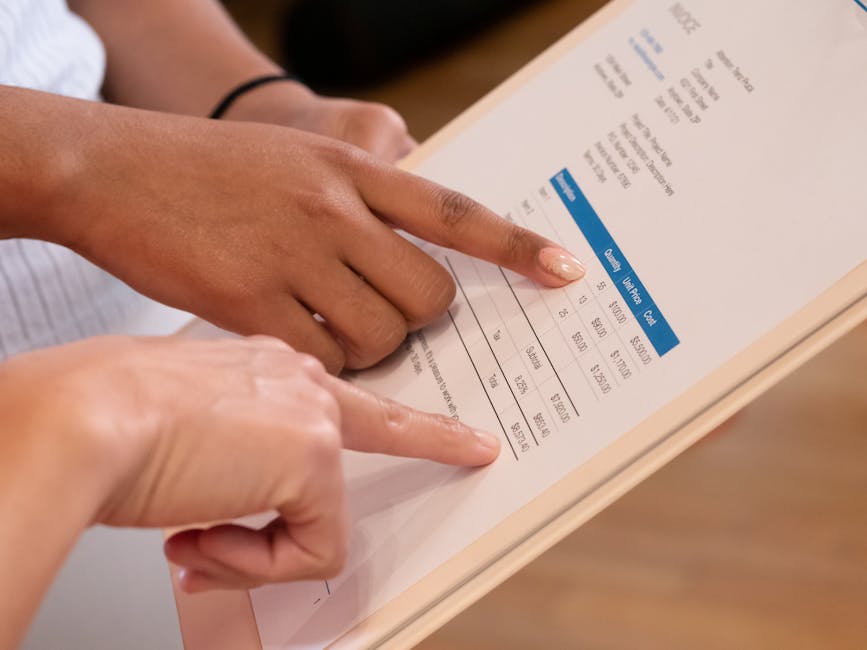
A clean PDF is not necessarily a useful invoice. The essentials are the information that identifies the seller, tells the client what they owe, and makes payment straightforward. Before worrying about a footer, verify these fields:
- From: Your business or personal name, a usable contact address, and any other details your client needs for their records.
- Bill to: The correct client or company name and billing details. Check spelling and the recipient’s invoicing requirements.
- Invoice number: A unique number that fits your own numbering system. Check that it has not already been used.
- Invoice date: The date the invoice is issued, not a future date accidentally left in the form.
- Line items: Clear descriptions, quantities or hours, rates, and line totals. Make sure the descriptions match the agreed work.
- Tax and total: Verify the rate, tax treatment, currency, and final amount due. Requirements vary, so follow the rules that apply to your business.
- Terms: State when payment is due and include any payment instructions or agreed late-payment information that applies.
In practice, clients are more likely to be slowed down by a missing bill-to name, unclear line items, or a confusing due date than by a small software credit. A footer-free PDF is a presentation improvement; complete and accurate invoice fields are operational necessities.
Net 30: check the due-date math
“Net 30” generally means payment is due 30 days after the invoice date, but you should make the actual date visible so nobody has to do the calculation. For example, if an invoice is dated March 1, adding 30 calendar days gives March 31. If it is dated March 2, adding 30 calendar days gives April 1. Month lengths matter, and conventions can vary, so confirm that the due date matches your written agreement and the terms you invoice generator for landscapers intend to use.
Do not rely on a template’s default date without checking it. Look at the invoice date, the term, and the displayed due date together before exporting. If your business agreement says payment is due by a specific calendar date or uses a different counting rule, follow that agreement rather than assuming “Net 30” settles every detail.
A quick decision process before you subscribe
- Make a sample invoice. Use realistic but non-sensitive details and inspect the PDF on screen.
- Check the footer. Decide whether its size and placement are genuinely a problem for your clients.
- Verify the core fields. Review From, Bill to, line items, invoice number, totals, terms, and due date.
- Test the free workflow. Confirm whether you can export without signing up and understand what Download PDF or Save & Send does.
- Compare the actual price. Include applicable tax, renewal timing, and whether the annual or monthly option makes sense for your usage.
- Read the privacy details. Check how browser drafts, account sign-in, sending, and analytics are handled.
- Choose based on your routine. Upgrade only if the cleaner PDF or other included features are worth the cost you will actually pay.
So, is Pro worth it just to remove the footer?
It can be—especially if you invoice clients often, the footer is prominent, or a branded PDF is part of the professional experience you want to provide. At the example price, the annual plan may be attractive for steady use, while paying monthly can make sense if you want to try Pro or need it for a limited period. Check the current terms at checkout, including tax and renewal details.
But if your invoices are occasional, your clients do not mind the credit, or a free no-signup tool gives you the PDF you need, there is no operational reason to pay just for a cleaner bottom edge. A tool made free at the-invoice-generator.net may be a better fit for someone who values a fast export and a simple browser workflow over a subscription. Compare the actual document and the privacy terms rather than relying on a plan headline.

In short: prioritize accurate fields, a unique invoice number, clear payment terms, and a checked due date. Then decide whether removing the footer is worth the price for your specific business. If the answer is yes, Pro can be a reasonable convenience. If not, download a cleanly completed invoice using the free option that works for you and keep your own copy.